Dashboard

Your whole shop, in one ten-second read

The Dashboard is the manager's home screen — a live pulse monitor that pulls jobs, quotes, invoices, your team, and your ink into one view. See what's in progress, what's coming in, who's busy, and what needs attention, then click straight into it.

7-day trial · No card required · No automatic charge

Wraptor / Dashboard Product view
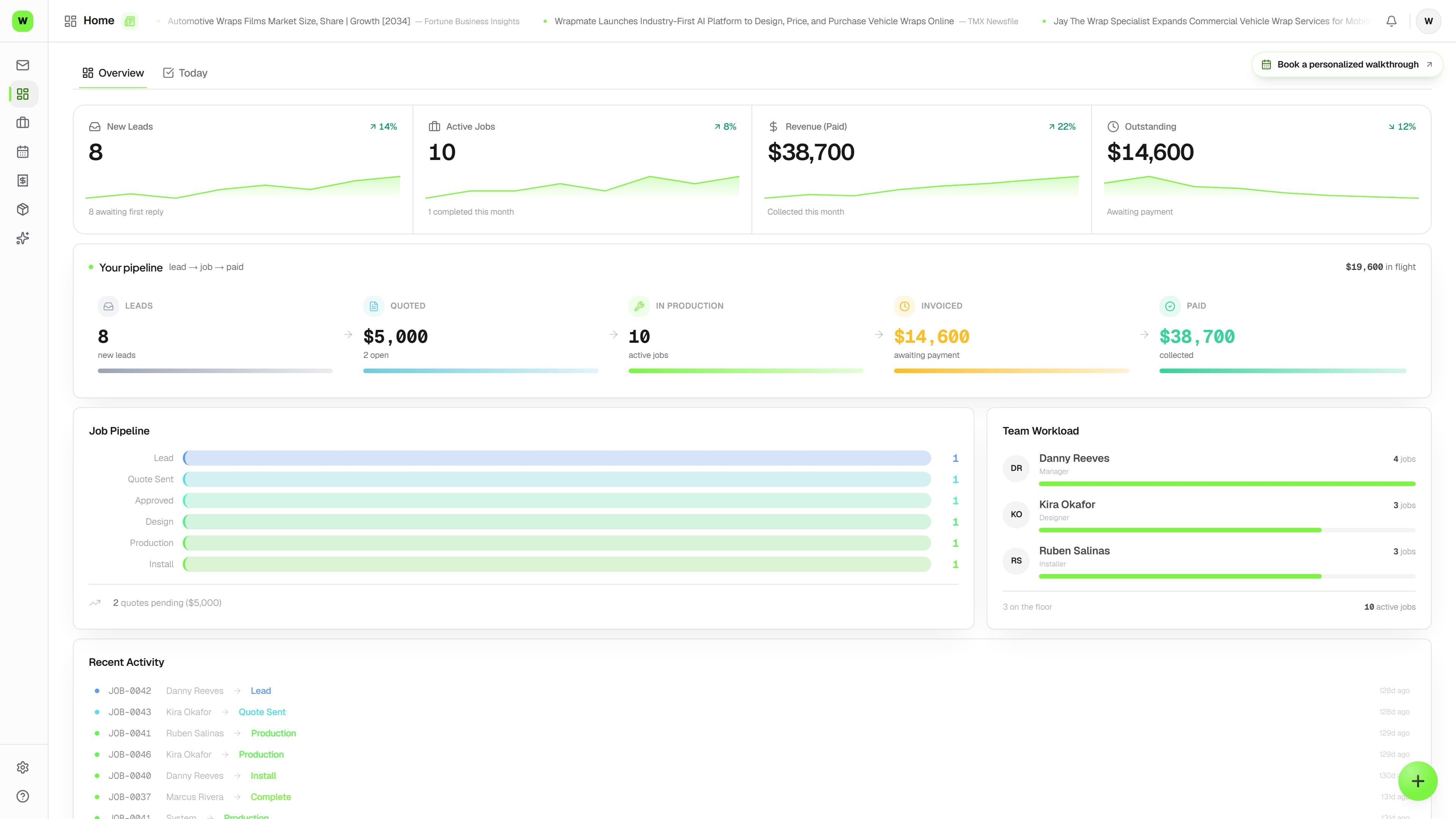
Wraptor dashboard showing KPI tiles, job and quote pipelines, team workload, and recent activity

A look inside your next workday.

A better way to work

Where does the day actually stand?

Answering that means opening five screens. The Dashboard pulls the whole shop into one snapshot you can read before your coffee's done.

Without Wraptor

  • No single screen that shows how the shop is doing right now
  • Bottlenecks in a stage you don't notice until it's a problem
  • No quick read on who's overloaded and who has room
  • Outstanding balances easy to lose track of day to day
  • Running low on ink and finding out mid-print

With Wraptor

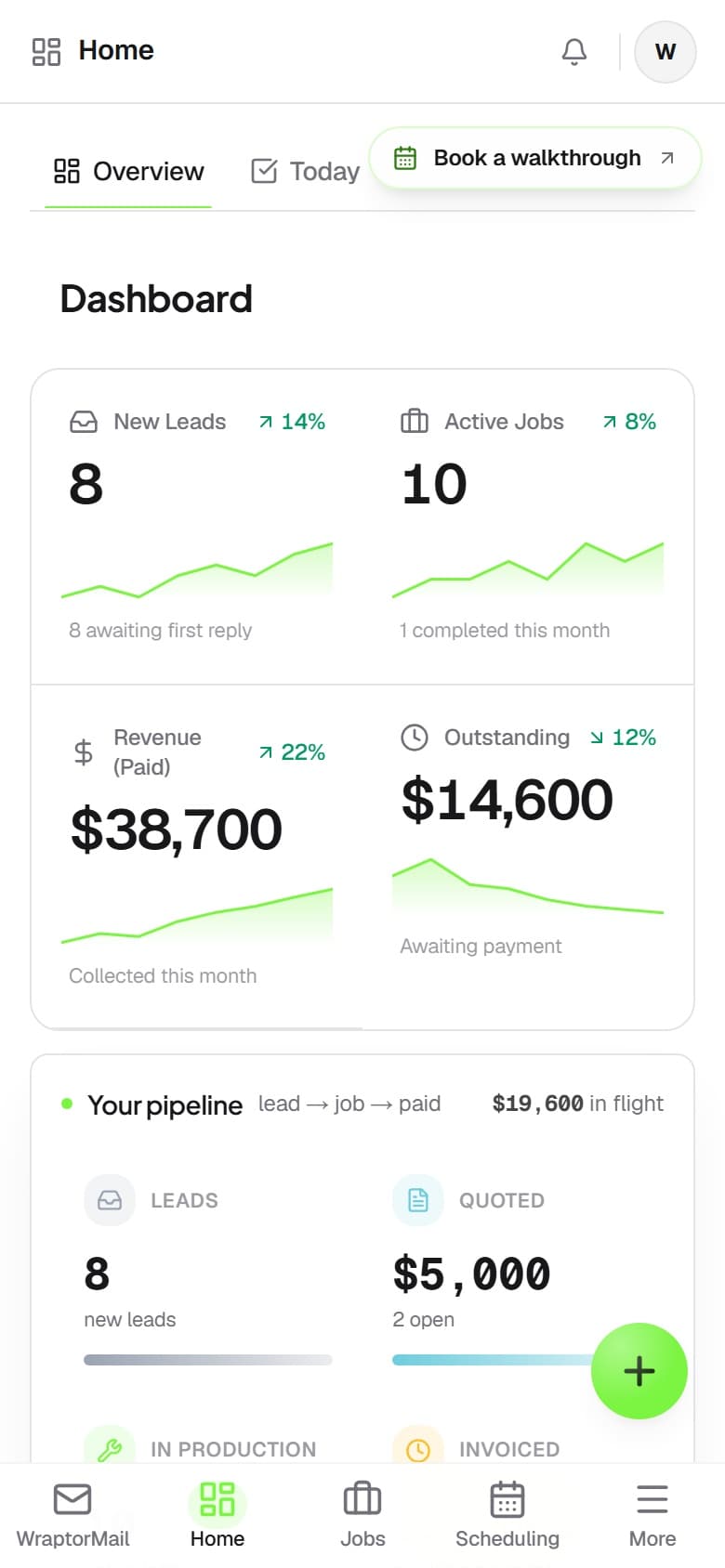
  • Four KPIs: active jobs, completed this month, revenue paid, and outstanding
  • A Job Pipeline bar per stage so you see where work piles up
  • A Quote Pipeline showing pending and approved value
  • Team Workload ranking who's carrying the most active jobs
  • Low-ink alerts and a recent-activity feed that links to each job

See it in action

Every view. One familiar workspace.

Take a closer look at the screens your crew will use, with views for the way you like to work.

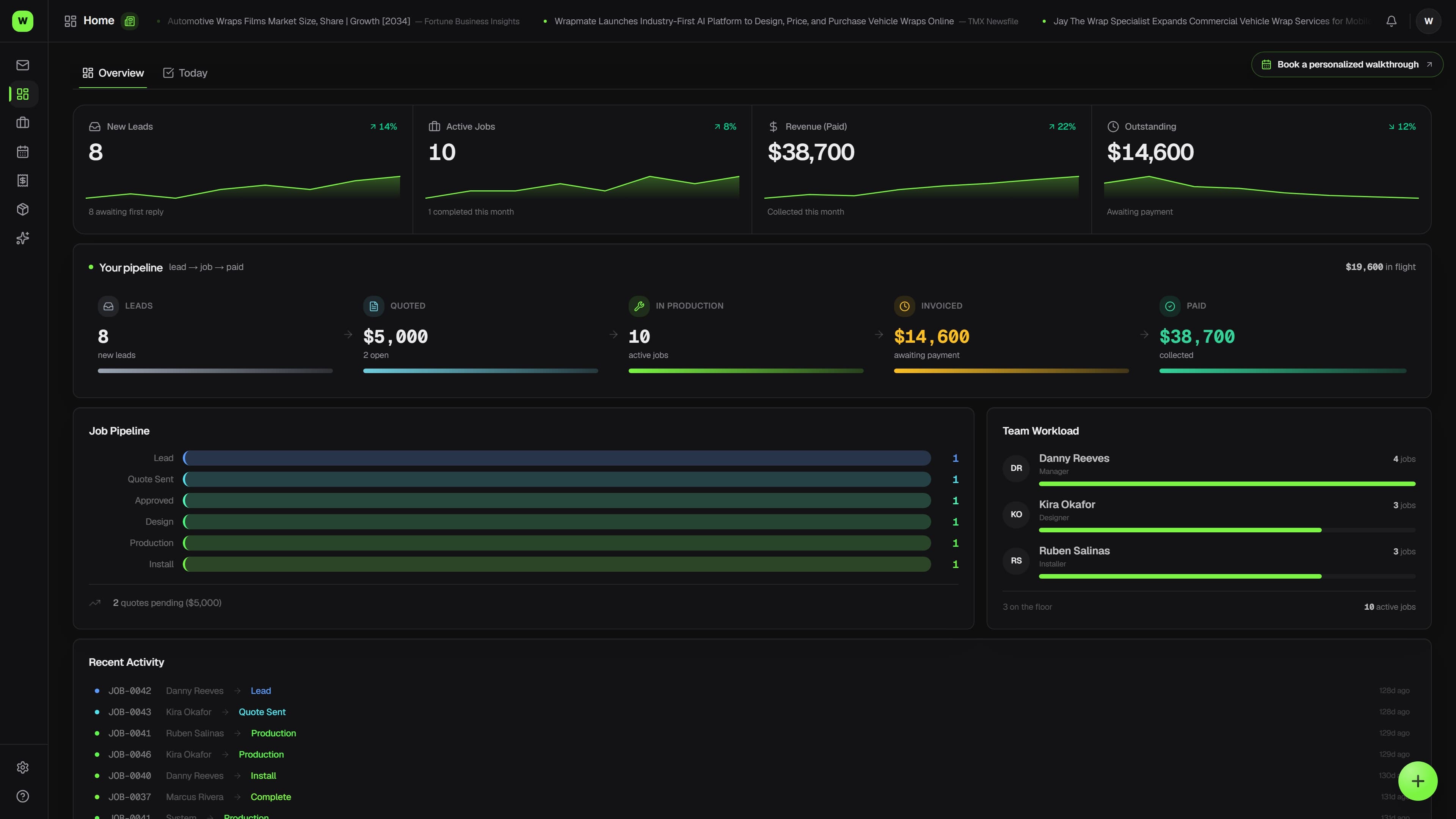
Wraptor dashboard showing KPI tiles, job and quote pipelines, team workload, and recent activity (light mode)

How it works

A clear path from setup to done.

01

Do your morning check-in

Open the Dashboard and scan the four KPIs, then the Job and Quote pipelines, to get the headline story of the shop in seconds — no refresh button, every visit re-reads the latest numbers.

02

Balance the team and catch problems

Check Team Workload to see who's loaded up before someone's buried, and glance for a Low Ink card — it only appears when a printer needs attention, with a one-click reorder link.

03

Jump straight into the work

Every line in Recent Activity links to the job that moved, so the Dashboard doubles as a launchpad: spot what matters, click through, and act.

Capabilities

The details that make the difference.

  • Headline KPIs

    Four numbers tell the right-now story: Active Jobs, Completed This Month, Revenue (Paid), and Outstanding with an on-hold note. Revenue counts money actually collected, not quoted or invoiced.

  • Job & Quote pipelines

    A bar for each workflow stage shows where jobs are piling up, while the Quote Pipeline shows how many quotes are pending and approved and their dollar value — so you see committed and potential work at once.

  • Team Workload

    A ranked view of who's carrying how many active jobs, so you can redistribute work before anyone gets buried. The names come straight from your team and assignments.

  • Low Ink alerts

    A Low Ink card appears only when a printer drops below its threshold, with quick reorder links. No card means every channel is above its threshold — thresholds and printers are set in Inventory.

  • Recent Activity feed

    The latest job movements, each a clickable line that jumps straight to that job. The Dashboard isn't just a readout — it's the fastest launchpad into the work that just changed.

  • Setup checklist

    Guided setup helps you confirm shop details, review materials and pricing, invite the crew, and create a first quote. Print and sign shops get relevant starter catalog and ticket guidance, plus an optional sample banner order to explore.

  • Continue the day in Jobs → Today

    After the morning overview, use Today in Jobs for upcoming work, changes needing review, blockers, and customer follow-ups. Save it as your Jobs default when most of your day happens on the floor.

  • Choose your next task

    Use Follow up on quotes or Prepare installs to bring the relevant records into view. Focus uses recorded facts and only the locations you can access.

  • Open work with a supported command

    Type or speak a supported job, customer, or schedule command. Prepare a note, choose the right job, and review it before saving. Typing is available when microphone input is not.

  • Collections and balances from actual receipts

    Monthly collections include payments received in the shop’s calendar month and recorded refunds. Outstanding balances use each invoice’s remaining amount; parked and archived work stay out of active-job counts.

FAQ

Common questions.

What is the Wraptor Dashboard?

The Dashboard is the manager's home screen — the first thing you see on sign-in. It's a live pulse monitor that pulls numbers from across Wraptor (jobs, quotes, invoices, team, and ink) into one screen, with four KPIs plus panels for the job and quote pipelines, team workload, low ink, and recent activity. It's read-only; everything links to where you'd make changes.

What does "Revenue (Paid)" mean on the Dashboard?

Revenue (Paid) sums invoices that have actually been paid — not approved quotes or sent-but-unpaid invoices. Quoted-but-unbilled value shows separately in the Quote Pipeline, and money still owed shows in the Outstanding tile, so each number reflects a different stage of cash.

Who sees the Dashboard?

The Dashboard is Manager-only. Managers are sent here on sign-in, while designers, production, and installers start on the Jobs board instead. To give a custom role the Dashboard, grant it the dashboard access plus Jobs and Inventory access, since it pulls in pipeline and low-ink data.

How is the Dashboard different from Reports?

The Dashboard answers "how are we doing right now?" with a live snapshot of active work, while Reports answers "what do the trends and the money look like over months?" The Dashboard is the lighter daily home screen; Reports is the deeper look back with month-over-month charts and the Profit Leak Detector.

Make room for better work

Read your shop in ten seconds

The manager Dashboard is open from day one of your 7-day free trial, with the whole app behind it. No card required; no automatic charge.

Free demo · Optional 7-day trial requires no card