Estimates

Price the wrap, the banner, and the next repeat order

Choose flat, per-item, or area pricing for the work you sell. Build wrap estimates or print orders with saved products, quantity breaks, and finishing, then send a branded quote for approval and carry its details into the job.

7-day trial · No card required · No automatic charge

Wraptor / Estimates Product view
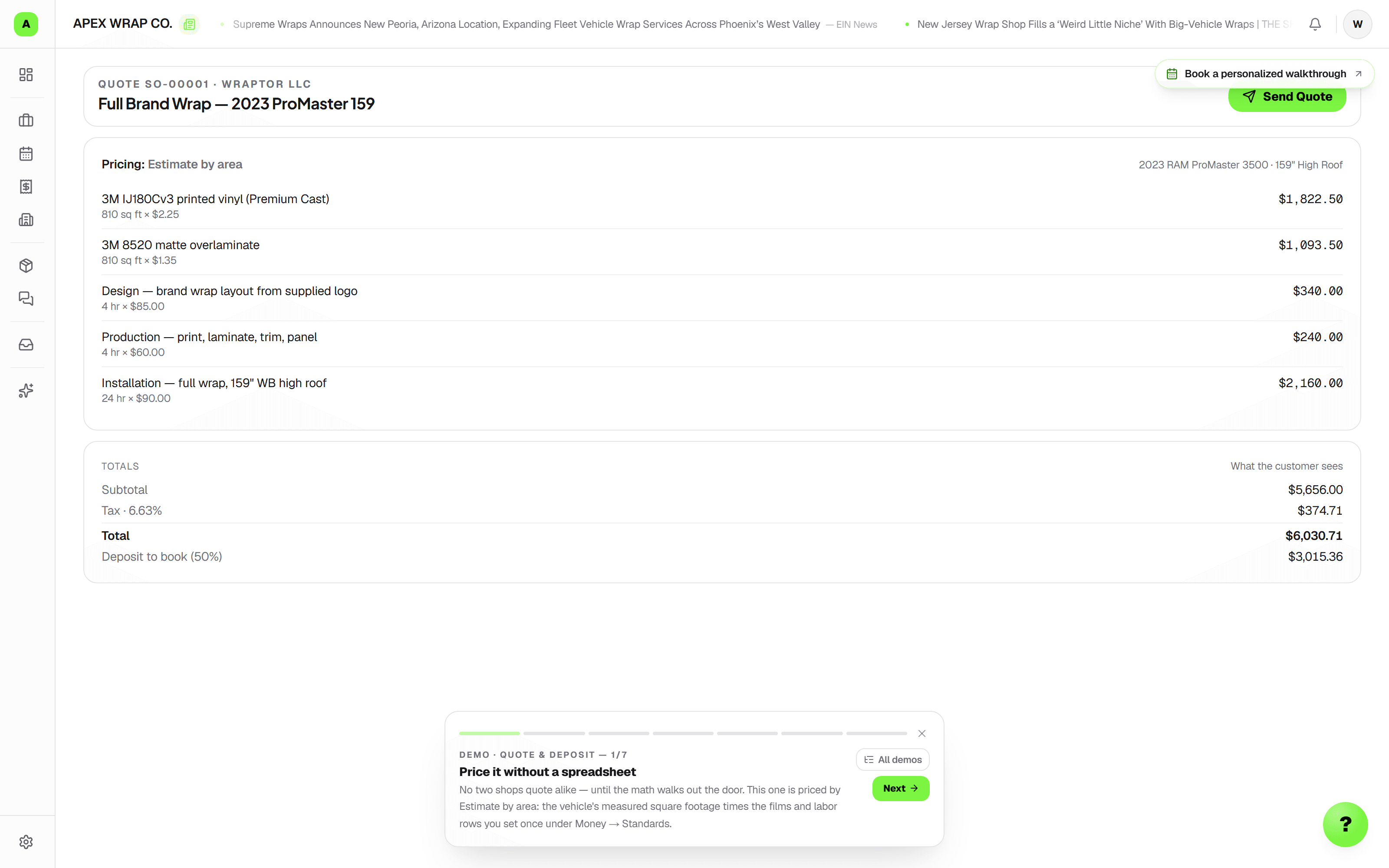
Wraptor quote builder with itemized materials, labor, tax, and an approve button

A look inside your next workday.

A better way to work

Estimates in a spreadsheet lose you jobs

Slow, inconsistent quotes let customers cool off and let you underprice the work.

Without Wraptor

  • Typing estimates in Word or a spreadsheet every time
  • No itemized breakdown of materials vs. labor
  • Guessing square footage and underpricing the wrap
  • Customers approve over text with no paper trail
  • Re-keying the whole job after the quote is approved

With Wraptor

  • Branded, itemized quotes numbered SO-00001 automatically
  • Good, Better, Best tiers — the customer picks one on the public page
  • Public approval link — no login, one-tap Approve Quote
  • Material calculator works out sq ft panel by panel
  • Draft a quote from a Studio design or an inbox inquiry
  • AI price suggestions from your shop's own job history
  • An organized item catalog for services, materials, labor, and add-ons
  • Print recipes with dimensions, sides, quantity breaks, and finishing
  • Reorders start fresh with current catalog pricing to review
  • Duplicate a past quote onto the next job — priced, editable, one click
  • One-click convert to a job, permanently linked to the quote

See it in action

Every view. One familiar workspace.

Take a closer look at the screens your crew will use, with views for the way you like to work.

Wraptor quote builder with itemized materials, labor, tax, and an approve button (light mode)

How it works

A clear path from setup to done.

01

Build the quote

Pick a customer and the service, then choose flat, per-item, or area pricing. Add a vehicle when relevant; print and sign orders start with products, dimensions, and quantities.

02

Send the link

Press Send and Wraptor emails the quote with a private link — or copy the link and share it however you like. The customer reviews itemized pricing and taps Approve Quote — no account needed.

03

Convert to a job

Once approved, click Create Job. Customer, vehicle, wrap type, and title carry over into a new JOB record that stays linked to the original quote.

04

Move into production

From the new job, head straight to scheduling, design, and the proof flow. The quote lives in the job's Quotes & Invoices tab forever.

Capabilities

The details that make the difference.

  • Itemized quote builder

    Add material lines (SKU, name, sq ft, unit price) and labor lines (type, hours, rate) with running subtotal, tax, and total. Each quote is a branded price sheet numbered SO-00001.

  • Material calculator

    Type the year, make, and model to look up measured square footage. Choose coverage or individual panels, pick the appropriate variant where available, and review whether the area is measured, matched, or entered manually before pricing it.

  • AI price suggestions

    Get a suggested line-item set and a historical price range (min, max, avg) drawn from your shop's completed jobs. Price by wrap type, vehicle type, and estimated sq ft.

  • Good, Better, Best options

    Add an option and the quote's price becomes the starred one, with a copy beside it — change the film, the coverage, or the price on each. The customer compares them as cards on the public page and taps the one they want; the PDF matches the option they picked.

  • Draft from a design or an email

    In WrapStudio, "Create draft quote from this design" prices the material off the measured design at your shop's rates, with a waste line. In WrapMail, the Draft Quote button reads an inquiry into a tiered draft. Both arrive as drafts you review before anything sends.

  • Optional quote follow-ups

    Switch on automated nudges and a quiet quote gets a follow-up at 24 hours if it's still unviewed, or 72 hours if it was viewed but not approved — with a Viewed chip showing when the customer opened it. Follow-ups are off by default.

  • Public approval link

    Mark a quote Sent and share its public link. The customer opens it, reviews the itemized table, and taps Approve Quote. The approval is timestamped — no login required.

  • Duplicate a past quote

    Won a quote you'd happily send again? Duplicate it from the quote page or the list, or pull any past quote onto a job from its Quotes tab — line items, options, and deposit split land as a fresh draft you can edit and send.

  • An organized item catalog

    Find saved services, materials, labor, and add-ons by category and search, then add them to the quote. Prices are snapshotted so a later catalog edit doesn't rewrite a quote you've already built.

  • Print products and quantity breaks

    Save recipes for banners, signs, decals, posters, cards, and custom products. Set dimensions, sides, material, rates by each, square foot, or linear foot, setup fees, minimums, and quantity breaks. Supported itemized quote layouts and PDFs show the next price breaks while approval is open.

  • Finishing and prepress details

    Choose finishing such as hems, grommets, lamination, or cutting, with your own charge rules. Record artwork revision and manual bleed, color, and approval checks; the production ticket carries those details to the floor without customer prices.

  • Repeat print work with current rates

    Reorder a previous print specification into a new job and draft quote. Current catalog rates apply where the recipe matches; missing recipes or options are flagged for price review. Artwork details and approvals reset for the new order.

  • Substrate cost beside the selling price

    Optionally link a print product to inventory to estimate substrate cost and margin after substrate. The estimate stays internal and excludes ink, finishing, and labor, so the customer still sees only your selling price.

  • Tax zones and deposits

    Start from your shop's tax settings, choose a custom rate or exemption when needed, and set a percentage or fixed deposit. Sent quotes keep their saved tax policy when you later change shop defaults.

  • Compare the request with your draft

    Open the requested-work review to see source-backed suggestions alongside the linked draft quote. Select work to add, enter a price and tax category, and review the totals before sharing.

FAQ

Common questions.

How do quotes work in Wraptor?

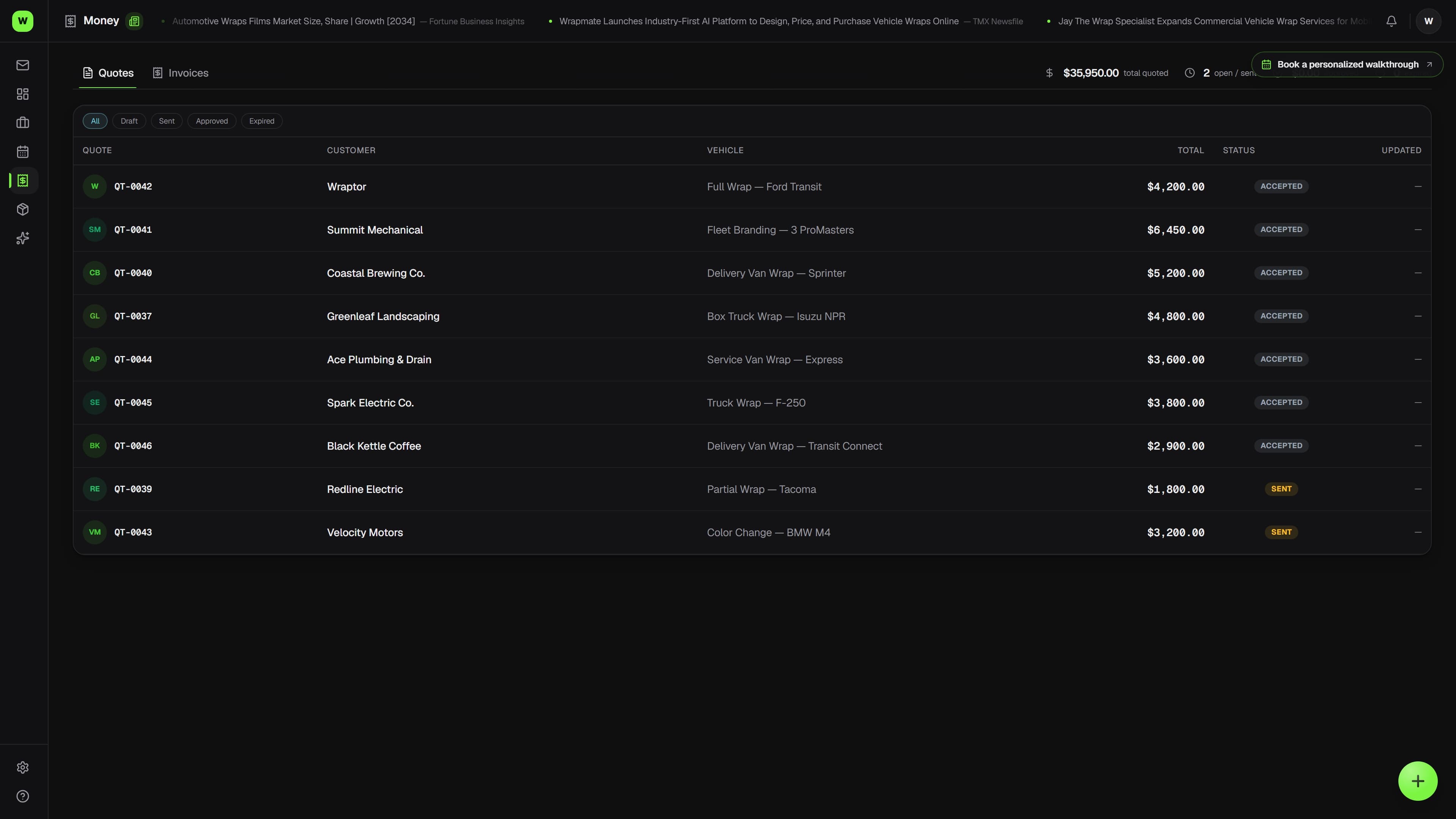
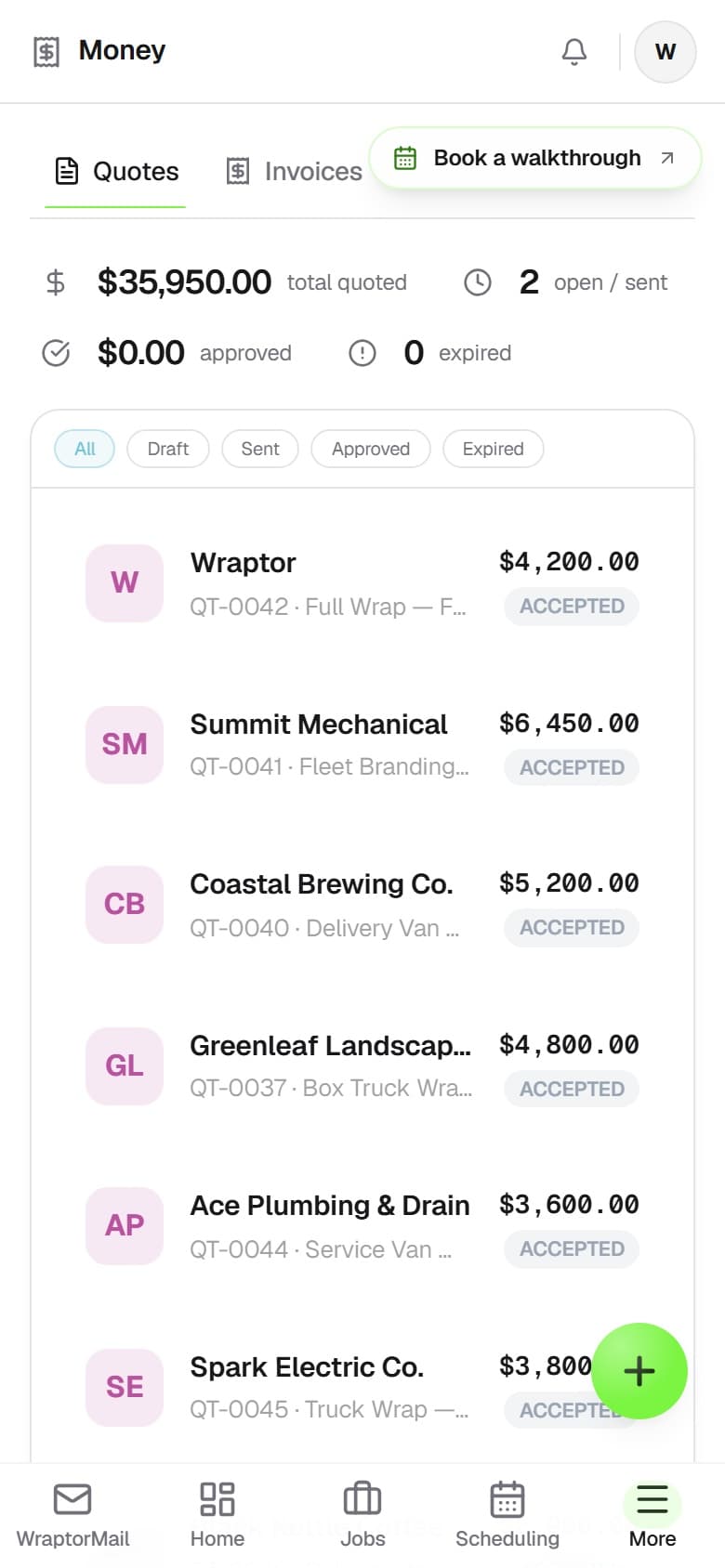
A Wraptor quote is a branded, itemized price sheet with materials, labor, subtotal, tax, and a total. You build it from the Billing area, a customer record, or a job, then mark it Sent to generate a public link. The customer reviews the line items and taps Approve Quote — no login required. Each quote gets a unique number like SO-00001.

Can customers approve quotes online?

Yes. When you send a quote, Wraptor emails it with a private link you can also copy and share. The customer opens it, reviews the itemized pricing, and clicks Approve Quote. The approval is timestamped, and staff can also mark a quote approved manually if they have verbal sign-off.

Does converting a quote to a job re-enter all the data?

No. Once a quote is approved, one click on Create Job carries over the customer, vehicle, wrap type, and title into a new job record. The quote and job stay permanently linked, so you can always trace a job back to the price the customer approved.

Can Wraptor suggest a price for a quote?

Wraptor's AI Price Suggestion panel returns a suggested set of line items and a historical price range based on wrap type, vehicle type, and estimated square footage, informed by your shop's completed jobs. You can apply the suggestions to the quote or use them as a sanity check.

Can I show a customer good, better, and best options?

Yes. Under Advanced on a draft quote, Add an option copies the current price into a second option you can rename, star, and change — up to three. The public quote page shows them as cards the customer compares and selects, and the PDF reflects the option they choose.

Can Wraptor follow up on a quote automatically?

If you opt in. Quote follow-ups are off by default; turn them on and a quote that goes unviewed for 24 hours, or sits viewed-but-unapproved for 72 hours, gets an automated nudge, with a Viewed chip marking when the customer opened it.

Does Wraptor have a price book?

Yes. Manage your items under Money → Quote Settings, organized around what your shop sells. In the quote builder, search or browse categories and add an item at its saved rate. Print & signs also has a recipe catalog for dimensions, quantity breaks, and finishing. Later catalog changes don't rewrite existing quotes.

Can I quote signs or print work without a vehicle?

Yes. Print & signs opens a product-based quote without requiring a vehicle. Start with a banner, yard sign, decal, poster, or business card recipe, or create your own. Starter rates are labeled suggestions for you to review and replace with your shop's prices.

Do repeat orders copy the old price and approval?

A staff reorder creates a fresh job and draft quote. It reads current catalog rates when a recipe matches, flags any previous rates that need review, and clears artwork details and production approvals. Customers can request a reorder from an eligible completed order's tracking page; staff still confirm price, quantity, and artwork.

Does request review decide the quote price?

No. It helps compare requested work with the draft. You choose the additions and enter their prices and tax categories. Nothing is shared with the customer by accepting a suggestion.

Make room for better work

Send a quote they can approve in one tap

Book a 30-minute demo — we set Wraptor up with you and the 7-day Wraptor Shop trial starts when you open your workspace, with the whole app open — quotes, jobs, invoices, no caps. No card required; no automatic charge.

Free demo · Optional 7-day trial requires no card