Job scheduling

The install date and the promise. In one schedule.

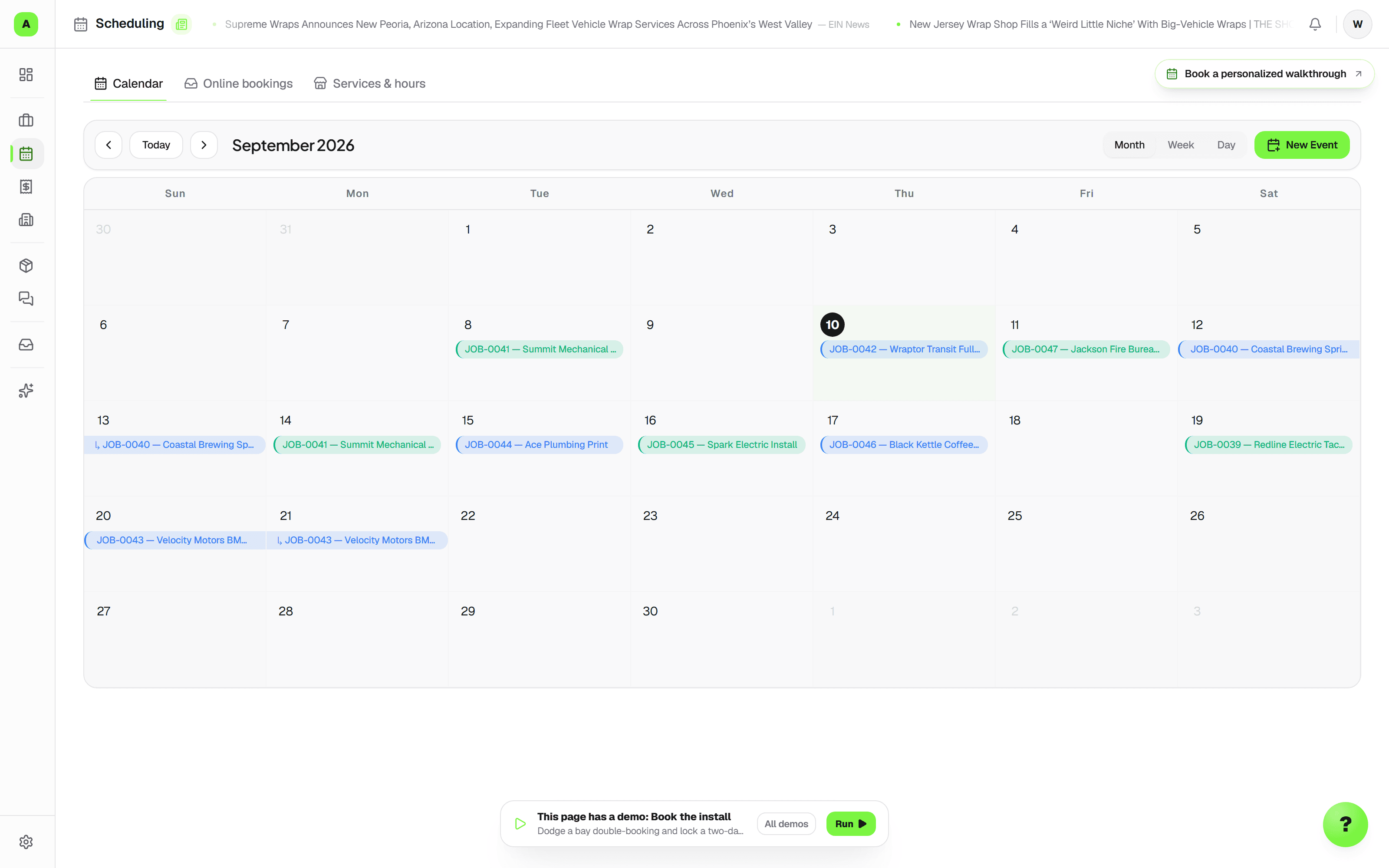
Plan jobs by install date or promised due date, with agenda, week, and month layouts inside Jobs. Book the install while design is still underway, give the floor a clear handoff, and schedule at your shop location with optional bays and crew.

7-day trial · No card required · No automatic charge

Wraptor / Job scheduling Product view
Wraptor install calendar showing bay lanes and installer assignments for the week

A look inside your next workday.

A better way to work

A date on a sticky note doesn't reach the floor

The schedule changes at the desk while the manager is installing or talking with customers. Keep the reservation, promised deadline, and next action on the job so both people see the same plan.

Without Wraptor

  • Install bookings and customer deadlines mixed into one date
  • Reservations held back until the job reaches installation
  • Schedule changes passed verbally between the desk and the floor
  • A bay setup that doesn't fit a shop with one install location
  • A new appointment treated as confirmed before the customer replies

With Wraptor

  • Switch between install-date and due-date schedules
  • Agenda, week, and month layouts with undated jobs still visible
  • Book an install in any stage without changing the promised deadline
  • Use a shop location alone, or add bays and crew when useful
  • Prepare customer messages and track confirmation explicitly
  • Save Schedule, Today, or another Jobs view as your own default

See it in action

Every view. One familiar workspace.

Take a closer look at the screens your crew will use, with views for the way you like to work.

Wraptor install calendar showing bay lanes and installer assignments for the week (light mode)

How it works

A clear path from setup to done.

01

Set the promise and the reservation

During job creation or from the job card, enter the due date and book the install with its start, end, or duration. The reservation doesn't advance the job's stage or overwrite its due date.

02

Choose the schedule you need

In Jobs, open Schedule and choose Install date or Due date, then agenda, week, or month. Review undated work and open any scheduled job for its details.

03

Hand the plan to the floor

Assign scheduling and production owners, record the next action, and ask the manager to acknowledge the handoff. Today shows upcoming work and changes still needing review.

04

Tell the customer and record the reply

Choose an appointment template, review the draft, and send it from the message composer. Staff track Tentative, Communicated, or Confirmed; changing the appointment time returns it to Tentative.
Capabilities

The details that make the difference.

  • Install date or due date

    Switch the schedule's date lens to see booked installs or promised deadlines chronologically. Both dates stay on the same customer job and can be edited independently.

  • Optional bays and crew

    A shop with one install location can schedule there without creating a bay. Add a bay or crew to a reservation when useful; the Bays view appears only for shops that have bays.

  • Booking before installation

    Reserve the install while a job is still quoted, in design, or awaiting materials. Scheduling and production progress stay independent, so a booked date never implies the work has started.

  • Agenda, week, and month

    Use an agenda for the next jobs in order, a week for coordinating the floor, or a month for upcoming commitments. Undated work has a place to review too.

  • Your default Jobs view

    Set Schedule, Today, List, Board, Crew, or an available Bays view as your personal default. The preference is saved to your account for your next visit.

  • Appointment communication with a clear status

    Use editable appointment drafts and an explicit staff-managed confirmation status. A time change resets confirmation to Tentative and appears in the handoff history; changing only bay or crew preserves confirmation.

  • An explicit overlap choice

    Staff with scheduling access can choose Allow overlapping bookings for an individual save. Bay and installer conflicts are explained separately; choosing Outside does not remove an assigned crew conflict.

  • Release a bay when work finishes

    A recorded bay finish releases the unused reservation after the cleanup buffer. Active work and other reservations remain protected, and public self-booking keeps its conflict rules.

FAQ

Common questions.

Can I view jobs by install date or due date?

Yes. The Schedule view inside Jobs switches between Install date and Due date and offers agenda, week, and month layouts. Install reservations and due dates are separate, so rescheduling an install doesn't silently change what you promised the customer.

Do I need install bays to use scheduling?

No. The job's shop location is enough. Bay and crew assignments are optional, and the Bays view is hidden when the shop has no bays. A single-location shop can use the same scheduling workflow.

Can I book an install before moving the job to installation?

Yes. Book while creating or editing the job, regardless of its current production stage. The install reservation stays separate from that stage and from the due date.

Does booking a date automatically message or confirm with the customer?

No. Appointment templates open editable drafts for staff to review and send. Staff record whether an appointment is Tentative, Communicated, or Confirmed. Moving the appointment time resets it to Tentative so the team knows to confirm the new plan.

Can the schedule open by default?

Yes. Choose Schedule in Jobs and use Set Schedule as my default. You can also choose another available Jobs view; the preference belongs to your account.

Can I override a bay or installer conflict?

Yes. Choose Allow overlapping bookings when saving an internal booking. It applies only to that save and does not remove existing reservations. Permissions still apply, and public self-booking does not gain an overlap override.

Make room for better work

Stop guessing, start scheduling

Put the install calendar to work on a 7-day free trial with Wraptor Shop features and trial usage allowances. No card required; no automatic charge. Your work stays saved when the trial ends; choose a paid plan to keep working.

Free demo · Optional 7-day trial requires no card