Files & assets

Job photos and shop files, easy to find

Keep artwork, photos, and documents with the work. Search by job or customer, including jobs without vehicles. Review text from supported scans, file an original to a job, or assign pages separately while preserving the source.

7-day trial · No card required · No automatic charge

Wraptor / Files & assets Product view
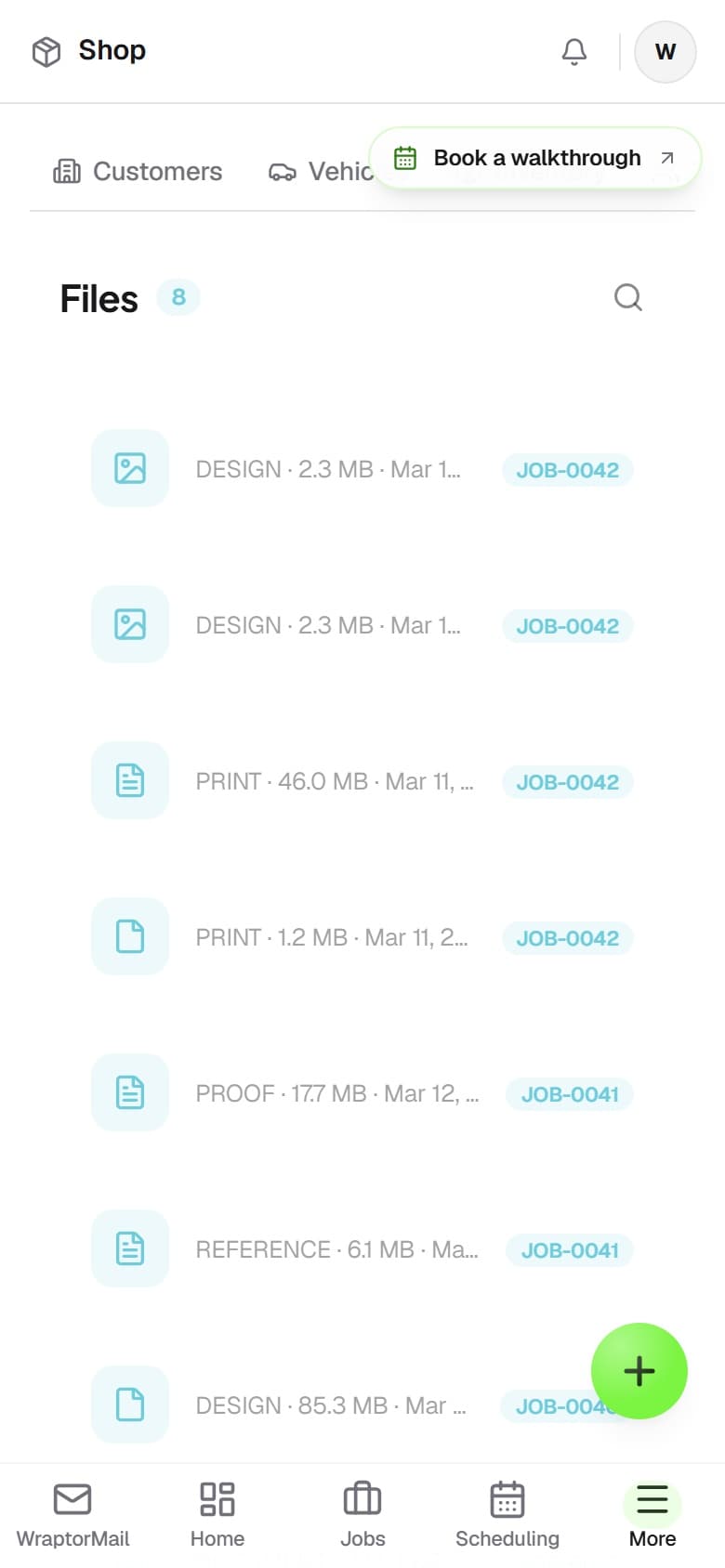
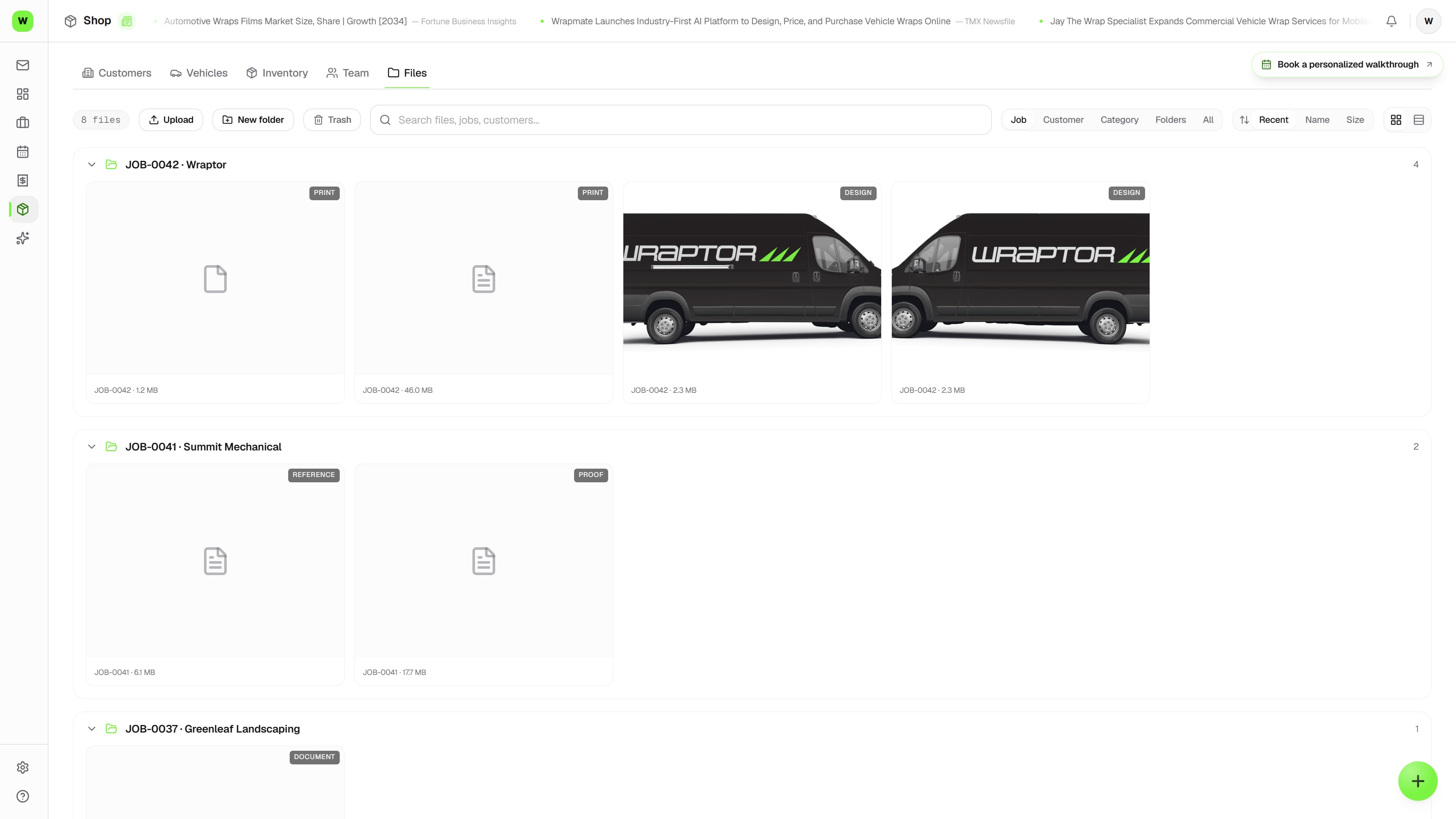
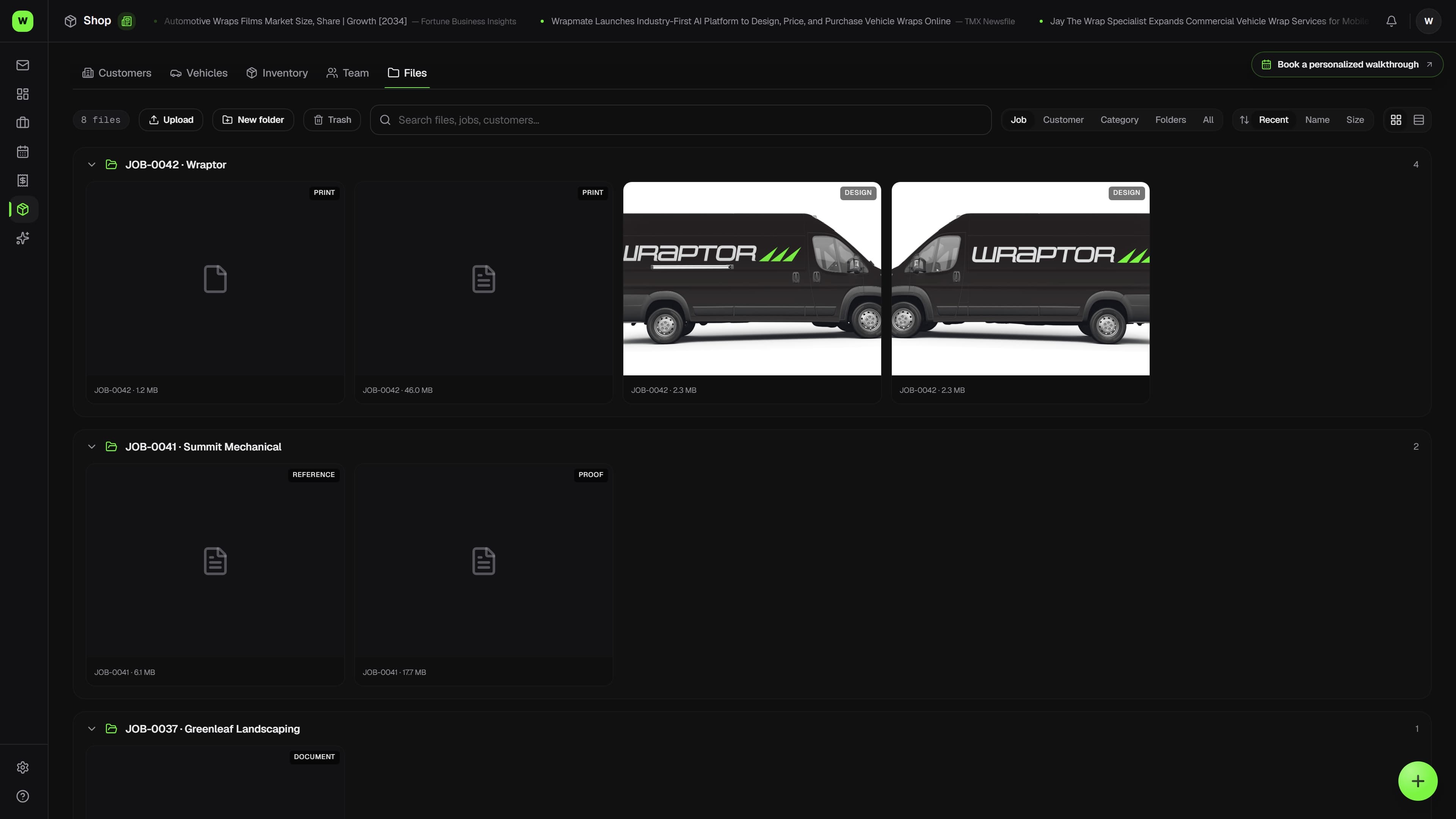
Wraptor Files browser listing files across jobs with type icons, customer, job number, and search

A look inside your next workday.

A better way to work

The right file, buried in the wrong place

When artwork and photos scatter across phones and drives, finding the right one wastes real time.

Without Wraptor

  • Artwork and photos scattered across phones, email, and drives
  • Digging through each job one by one to find a PDF
  • Install photos stuck on the installer's personal phone
  • iPhone HEIC photos that won't open on a teammate's computer
  • No fast way to find a document across every job at once

With Wraptor

  • Job files organized with the work, plus general shop files and folders
  • Tag files by type — Design, Proof, Install Photo, and more
  • Grid and list views grouped by job, customer, category, or folder
  • Search files and job numbers, then preview or open the work
  • iPhone HEIC photos converted to JPEG automatically on upload

See it in action

Every view. One familiar workspace.

Take a closer look at the screens your crew will use, with views for the way you like to work.

Wraptor Files browser listing files across jobs with type icons, customer, job number, and search (light mode)

How it works

A clear path from setup to done.

01

Add files to a job

Open the job and upload artwork, references, or documents in its file area, tagging each with a category like Design, Proof, Reference, or Other. Everything stays attached to the job it belongs to.

02

Capture photos from the floor

On mobile, take a new photo, choose one from your library, or browse files to attach an install or completion photo to the job. Supported iPhone HEIC uploads convert to JPEG for easier viewing across devices.

03

Find any file across the shop

Open Files from the Shop hub and search by filename, category, job number, or customer. Group the desktop browser by job, customer, category, or folder, then preview the file or open its job.

04

Set the board thumbnail

The first image or PDF you add to a job becomes its cover on the Jobs board automatically. Upload your best shot first, or set a different file as the thumbnail any time.
Capabilities

The details that make the difference.

  • Upload to any job

    Add documents and photos to a job and tag each with a category — Design, Proof, Install Photo, Completion Photo, Reference, or Other. Files are organized by the job they belong to, not by a folder tree.

  • Camera, library, or files on mobile

    Photo uploads offer a mobile choice for taking a new picture, selecting existing images, or browsing files. Inspection photos stay attached to their job, including photos added by other teammates.

  • Shop-wide Files browser

    Browse job assets and general shop files together, with grid or list views, search, grouping, and sorting. Preview, download, rename, share, or move files to trash from the browser.

  • Search by file or job

    Search by filename, category, job number, or customer. Find a matching asset, see the job it belongs to, and open the work without searching each job separately.

  • Folders for general shop files

    Upload documents that don't belong to a job and organize them into folders and subfolders. Job assets keep their own automatic grouping; general files can move between your folders.

  • Auto cover thumbnails

    The first image or PDF you add to a job automatically becomes that job's cover thumbnail on the board. Change it any time from the job's file area to show the image you want.

  • HEIC auto-conversion

    Photos shot on an iPhone (HEIC/HEIF) are converted to standard JPEG automatically on upload, so they display and download cleanly on every device without anyone converting them by hand.

  • Secure, role-based storage

    Everything is stored securely in the cloud and counts toward your plan's storage. The Files browser is controlled by the Files permission, which all four default roles include out of the box.

  • Read supported documents and scans

    Extract selectable PDF text, text documents, and English printed text from supported scanned PDFs or PNG/JPEG images. Review the extracted pages alongside the preserved original.

  • File an original or assign its pages

    Choose a job and category for the original, or assign every page once across separate jobs. A job’s page export contains only its assigned pages; reviewing a whole packet requires access to all of its jobs.

  • Correct a filing without losing the original

    Reopen page filing to correct assignments. The original stays in Drive, and prior filing history remains available. Choose the matching job yourself.

FAQ

Common questions.

How does file storage work in Wraptor?

Job files stay connected to their jobs, while general shop files can live in folders. Open Files from the Shop hub to browse both, search, preview, download, rename, and share. On desktop, choose a grid or list and group by job, customer, category, or folder.

Can I search for a file across all jobs?

Yes. Search across job and general shop files by filename, category, job number, or customer. Results show the related job where one exists, with file previews and a link back to the work.

Can I take a photo or choose one already on my phone?

Yes. Photo upload controls let you take a new photo, choose existing photos, or browse files on supported mobile browsers. Camera access uses your device's permissions; desktop keeps its usual file picker.

Does Wraptor handle iPhone photos?

Yes. Images shot on an iPhone in HEIC or HEIF format are converted to standard JPEG automatically when you upload them, so they open and download cleanly on any device. This is especially handy for install and completion photos captured from the shop floor on mobile.

Can I store files that aren't attached to a job?

Yes. Upload general shop documents directly in Files, then organize them into folders and subfolders. Job attachments remain automatically grouped with their jobs. Deleting a general folder moves its files to Unfiled rather than deleting them.

Which scanned files can I review?

Document review supports PDFs, text files, PNG and JPEG images up to 10 MB. PDFs can have up to 40 pages, with scan reading on at most 10 pages. Scan reading supports English printed text; check extracted text against the original, especially on faint or handwritten pages.

Does Wraptor decide where to file a document?

No. Review the text and choose the job and category, or assign the pages to separate jobs yourself. You can correct page filings later while preserving the original. Job-specific exports contain only that job’s assigned pages.

Make room for better work

Find any file in seconds

Keep job artwork, mobile photos, and general shop documents in one searchable workspace, with storage included according to your plan.

Free demo · Optional 7-day trial requires no card